IDE Setup
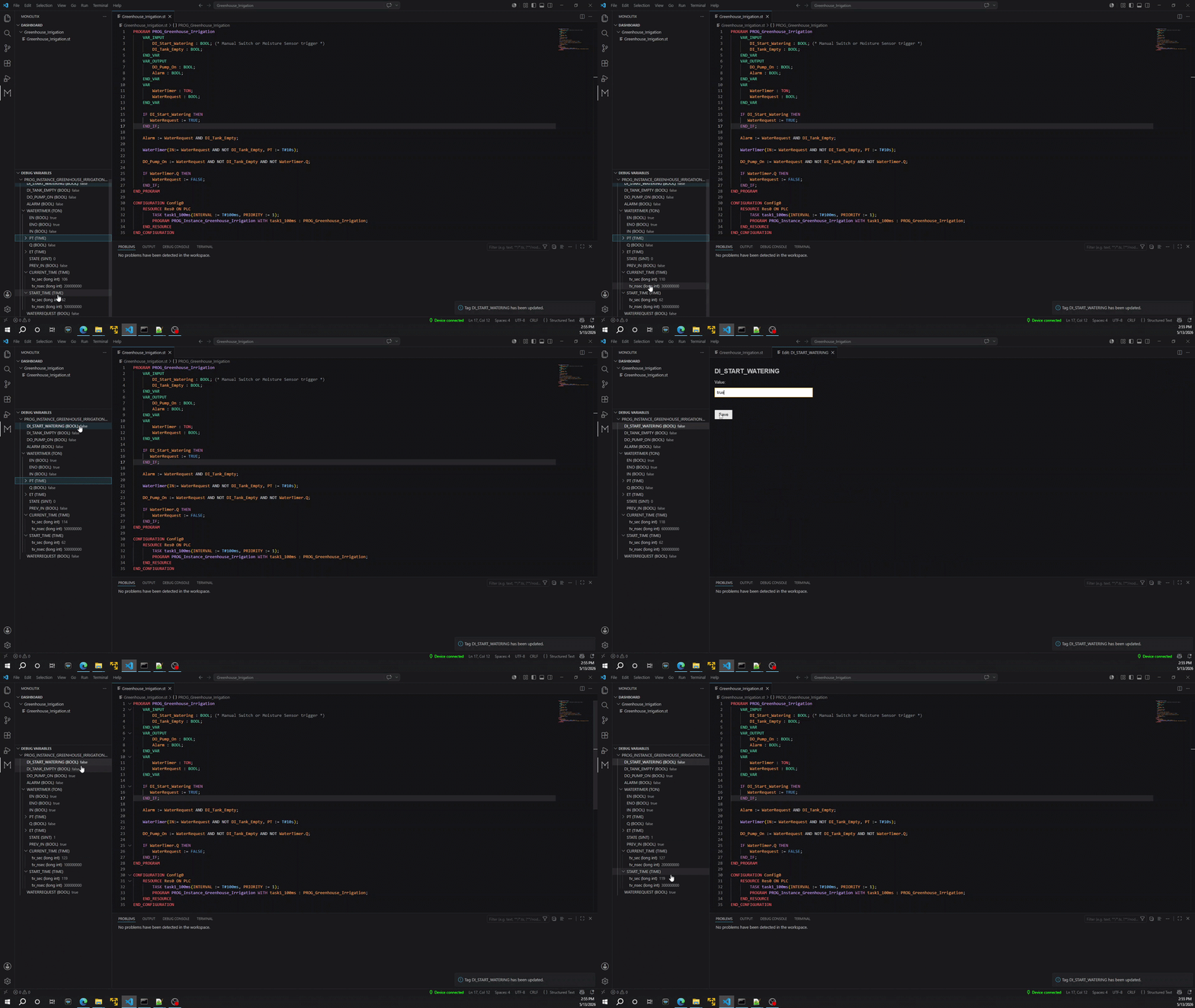
Step 1 - Create Project File
Create a new file with the .st extension inside the folder that is part of the VSCode Workspace.
Step 2 - Write the logic
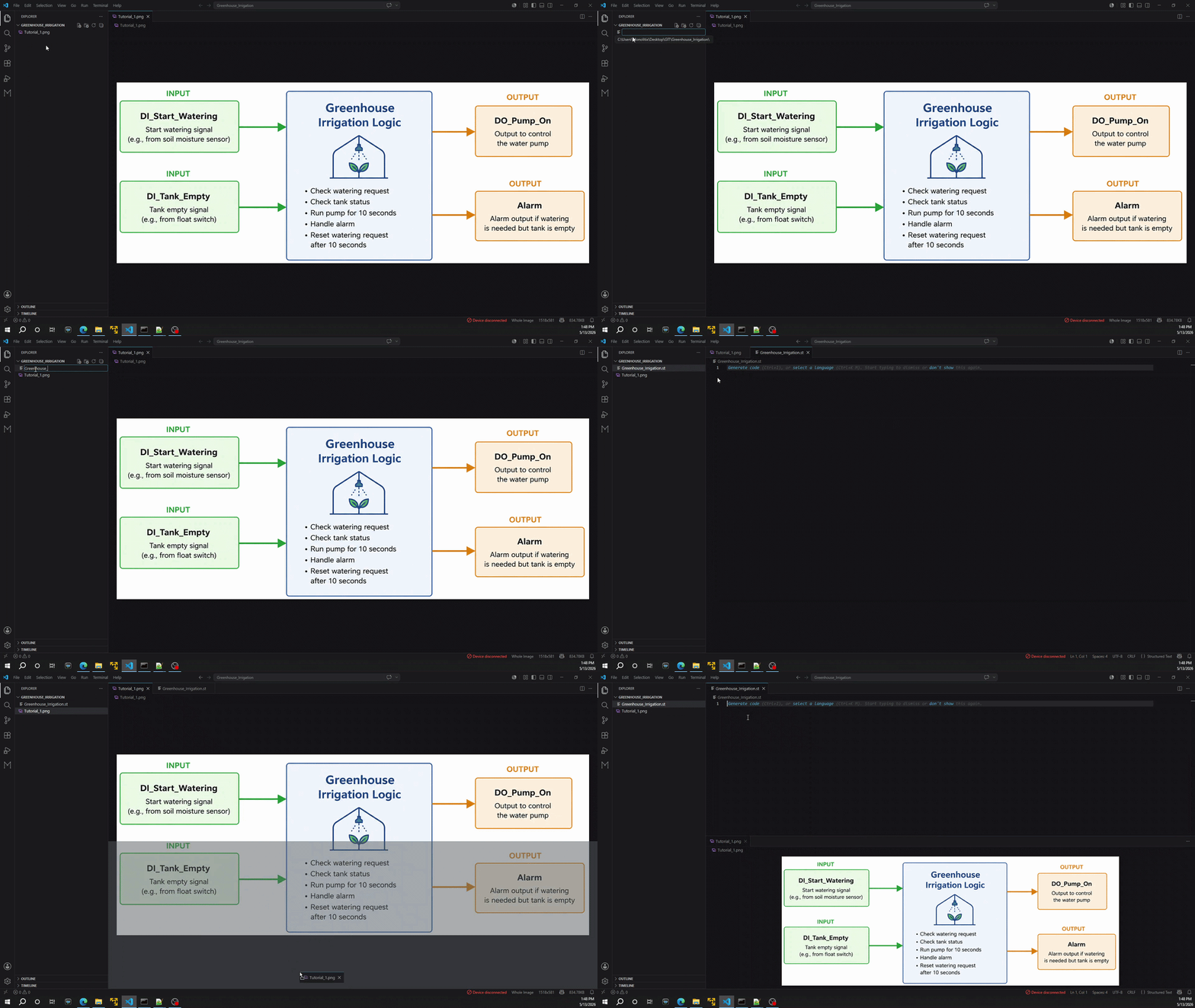
Add the PLC logic in Structured Text, including the Function Blocks and the Configuration section.
PROGRAM PROG_Greenhouse_Irrigation
    VAR_INPUT
        DI_Start_Watering : BOOL; (* Manual Switch or Moisture Sensor trigger *)
        DI_Tank_Empty : BOOL;
    END_VAR
    VAR_OUTPUT
        DO_Pump_On : BOOL;
        Alarm : BOOL;
    END_VAR
    VAR
        WaterTimer : TON;
        WaterRequest : BOOL;
    END_VAR

    IF DI_Start_Watering THEN
       WaterRequest := TRUE;
    END_IF;

    Alarm := WaterRequest AND DI_Tank_Empty;

    WaterTimer(IN:= WaterRequest AND NOT DI_Tank_Empty, PT := T#10s);

    DO_Pump_On := WaterRequest AND NOT DI_Tank_Empty AND NOT WaterTimer.Q;

    IF WaterTimer.Q THEN
        WaterRequest := FALSE;
    END_IF;
END_PROGRAM

CONFIGURATION Config0
    RESOURCE Res0 ON PLC
        TASK task1_100ms(INTERVAL := T#100ms, PRIORITY := 1);
        PROGRAM PROG_Instance_Greenhouse_Irrigation WITH task1_100ms : PROG_Greenhouse_Irrigation;
    END_RESOURCE
END_CONFIGURATION
Step 3 - Download project to PLC
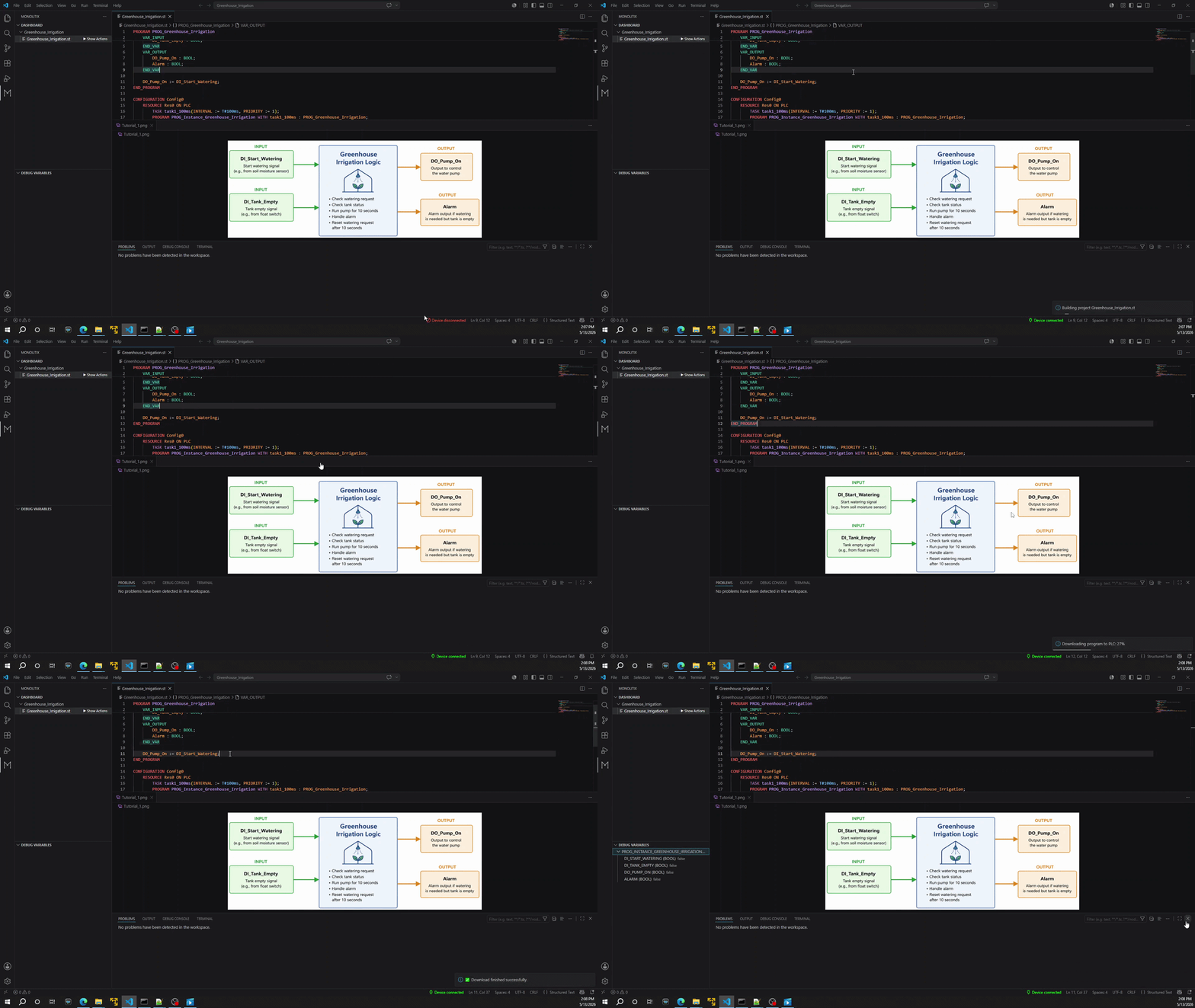
Check the logic for syntax errors, fix any existing issues and download the project to the PLC. If the same project is already loaded in the PLC, you can directly go online with it, without needing to download.
Step 4 - Debug project
After download, in the bottom-left side of the screen, the list of variables will be visible. The live values are visible, and by clicking on a variable, you have the option to overwrite its value.